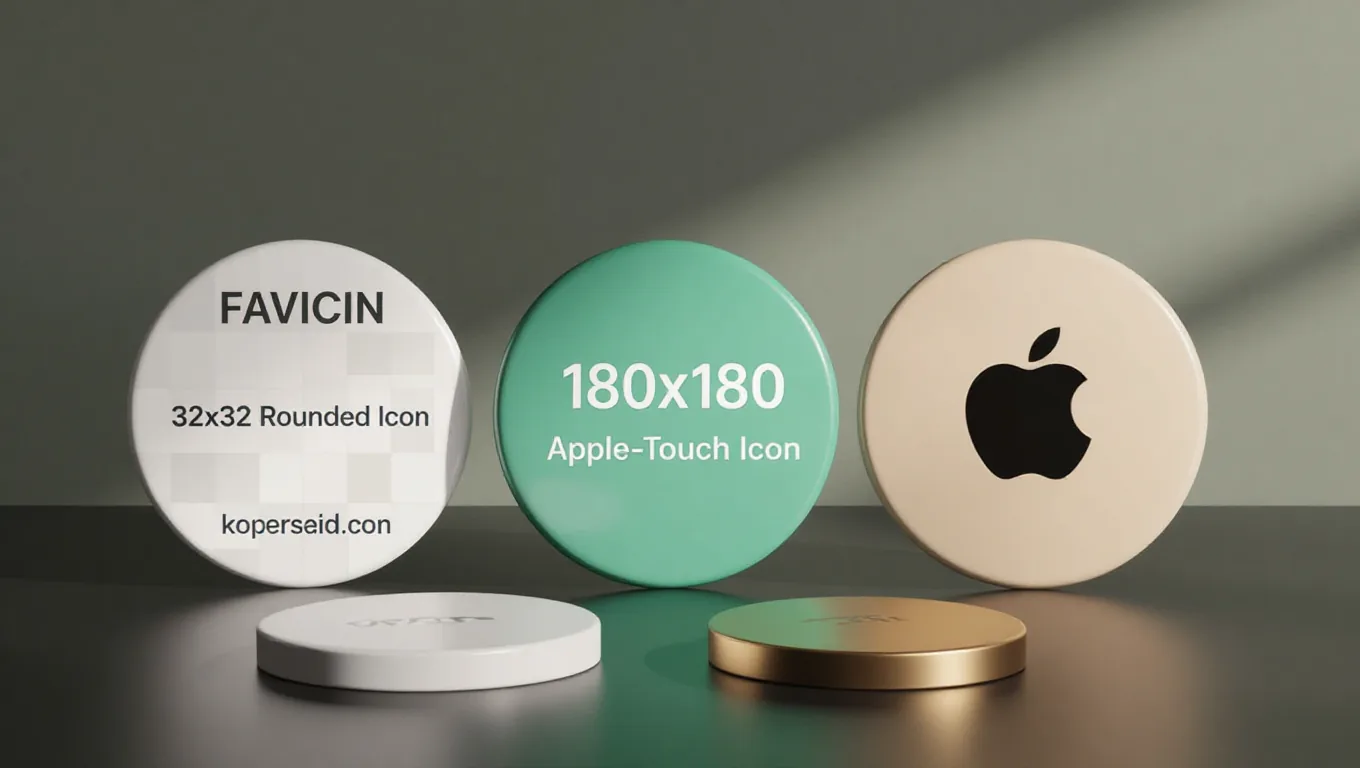
Most sites launch with a missing favicon, and the browser shows a blank gray page icon in the tab and bookmarks bar instead. A favicon — short for "favorite icon" — is the small image that appears in browser tabs, bookmark lists, history pages, and home-screen shortcuts. It costs almost nothing to add, yet it is one of the fastest ways to make a site feel finished and easier to recognize next to competitors. Bookmark managers, history pages, and tab strips typically reuse the same file, so one icon works nearly everywhere. This guide covers the sizes that still matter, the file formats worth using, dark-mode icons, and how to generate a complete favicon set without signing up for anything.
What a Favicon Actually Does
A favicon is typically 16×16 or 32×32 pixels in the tab, but browsers and operating systems ask for much larger versions too. Apple touch icons, Windows shortcut icons, and Android home-screen icons all draw from the same source artwork. The icon has no measurable effect on rankings or page speed, but a missing one makes a tab look unfinished. Think of it as a signpost: small, cheap, and easy to overlook until it is missing.
Sizes That Still Matter in 2026
Start with a master image at least 512×512 pixels so you can scale down without losing detail. From that master, generate the usual set:
- 16×16 — browser tabs and bookmark folders
- 32×32 — taskbar icons and high-DPI displays
- 48×48 — Windows shortcuts
- 180×180 — Apple touch icons for iPhone and iPad home screens
- SVG — one file that scales to any size, including dark mode
Most browsers typically pick the closest match and scale it, so you do not need every size under the sun, but 16×16 and 32×32 cover the places users actually look. Apple devices usually reach for the 180×180 touch icon when someone bookmarks to the home screen. One more nuance: exact pixel sizes matter less than they used to, but clarity at small sizes still matters. A symbol that looks fine at 512×512 can turn muddy at 16×16 if it has thin lines or tiny text. Design at 512×512, check the result at 32×32 before you ship, and simplify the symbol if it disappears at small sizes.
PNG, ICO, and SVG: Which Format to Use
PNG is the safe default: it supports transparency, renders crisply at small sizes, and every browser understands it. ICO is the old Windows container that can hold several sizes in one file; browsers still accept it, but modern sites rarely need it. SVG is increasingly popular because a single file scales to any resolution and can even switch colors for dark mode. The catch is older browsers — Internet Explorer and very old mobile browsers typically ignore SVG favicons entirely, so pairing an SVG with a 32×32 PNG fallback is the practical choice.
Dark Mode Favicons
SVG favicons support CSS media queries inside the file itself, so the icon can detect prefers-color-scheme and switch from a light symbol on a dark badge to a dark symbol on a light badge — or vice versa — without JavaScript. The markup looks like this:
<link rel="icon" type="image/svg+xml">
The SVG then wraps its drawing in @media (prefers-color-scheme: dark) blocks that swap fill colors. Not every browser honors this yet — Chrome and Safari typically do, while older versions may stick to the first icon they find. Test in both modes before you ship, and keep a PNG fallback linked right after so nothing breaks if the SVG is ignored.
Generating Favicons Without an Account
You do not need a newsletter wall to build a favicon set. Draw or generate a square icon — our AI Image Generator can produce the base artwork from a prompt — then run it through a favicon generator that spits out 16×16, 32×32, apple-touch, and SVG variants in a zip file. Save the icons in your site root or an /assets/icons folder, and link them in
. If you use a content management system, check whether your theme already injects favicon tags before adding duplicates; two conflicting icon declarations typically confuse nothing, but they make harder to audit later. Our Meta Tag Generator can draft the tags for you.Common Mistakes That Break Favicons
Caching is the biggest culprit. Browsers hold onto favicons aggressively, so changing the file often changes nothing until you clear the cache or open an incognito window. Another frequent mistake is the wrong path: a pointing to /favicon.ico when the file lives in /assets/ yields a 404 in the console and no icon at all. Transparency also trips people up — a white square on a white browser toolbar is invisible, so check the icon against both light and dark UI. Finally, do not stuff keywords into filenames; the icon is decorative, not an SEO opportunity.
Favicon FAQs
Do I need both ICO and PNG?
Not usually. PNG covers nearly every modern browser, while ICO mainly matters for very old Windows and Internet Explorer. If you support only current browsers, PNG plus SVG is typically enough.
Will a dark-mode favicon work everywhere?
No. Chrome and Safari typically honor the prefers-color-scheme media query inside an SVG favicon, but older browsers often ignore SVG icons entirely. Keep a 32×32 PNG fallback linked in
.How long until a new favicon shows up?
It depends on the browser and how aggressively it cached the old icon. Sometimes the change appears immediately; other times you need to clear the browser cache or wait until the next session. Incognito windows are the fastest way to check.
Need the base artwork first?
Generate Icon Art Free